Resilient Windows Home Office Backup: Layered File History & OneDrive StrategyA multi-section tech setup document with specific steps, timelines, and recommendations — built from your answers
Configure Windows File History for continuous local backups, then sync key documents to OneDrive for cloud redundancy. Use CRC32 checksum validation and file comparison with WinMerge to verify backups, ensuring data integrity with automated test restores.
See what a blueprint looks like
Here's a preview of the layout, sections, and level of detail you'll receive:
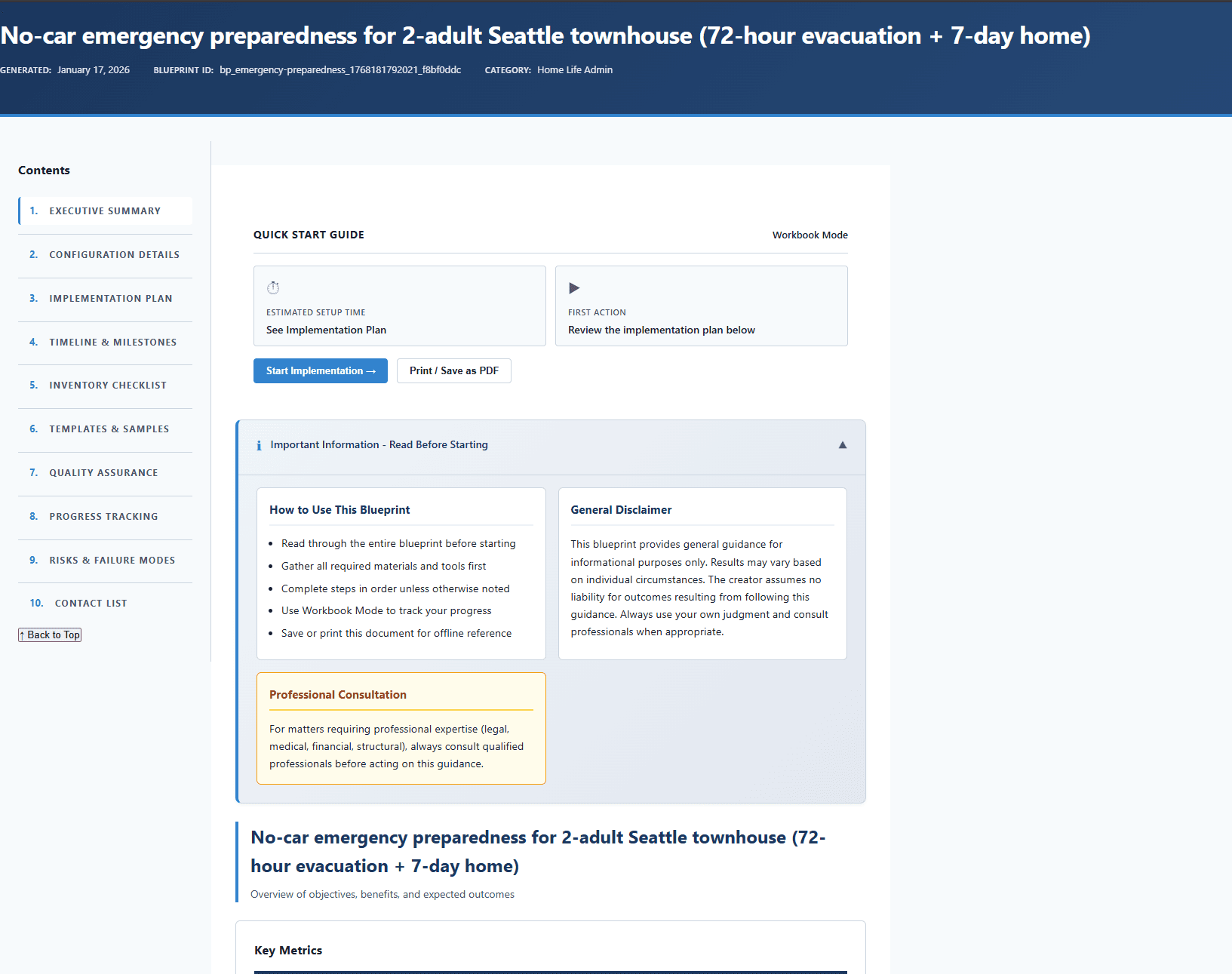
What's inside your blueprint
Each section is generated from your inputs, so it stays specific to your goals and constraints.
Scope of Guarantees
Understand exactly what "bulletproof" / "zero data loss" actually means
Source of Truth Workflow Rules
Know daily working rules for where files live and which device is authoritative
Offsite Approach Decision
Force a concrete decision on offsite backup approach with budget math
3-2-1 Location Diagram
Visual showing where each copy physically lives
Threat Scenarios & Response
Know exactly what to do when disaster strikes
Key & Recovery Kit
Have a backup plan if password manager or main account is lost
Restore Drills Schedule
Scheduled tests to verify backups actually work
RTO Feasibility Proof
Verify that stated recovery time is actually achievable
◆ Core section · ◇ Supporting section — sections may vary based on your category and inputs
How it works
Answer questions about your situation
Provide your goals, constraints, timeline, and preferences through a focused questionnaire.
AI builds your document
Your answers are used to generate a multi-section blueprint with concrete recommendations, timelines, and next steps in about 15-20 minutes.
Review, edit, and download
Read online, edit sections directly on the site, save your changes, and download the final PDF. 1 free AI refinement is included, and extra refinements are only $0.99 each from your balance.
Why a customized blueprint?
Why not just use ChatGPT?
General AI tools give a single response with no defined structure. A blueprint uses a topic-specific framework to produce organized sections you can follow — not a thread you have to interpret.
Your inputs shape every section
The questionnaire captures your goals, timeline, constraints, and preferences. Those details feed directly into each section — not bolted-on personalization after the fact.
A framework behind each topic
Every blueprint type has a defined section structure designed for that specific goal. You get the sections that matter for your situation, in a sequence that makes sense.
Steps you can start today
Concrete next steps, realistic timelines, and specific recommendations — not vague guidance you still need to figure out how to apply.
About ClearBlueprints: ClearBlueprints is a focused tool for structured, one-time documents. We design topic-specific frameworks, pair them with AI generation, and deliver a single finished output — no account required, no ongoing cost.
Important: This technical setup guide is for informational purposes only. Follow all official documentation for your specific platforms and tools. Backup all data before making system changes. Consult qualified IT professionals for critical systems or enterprise deployments. Technical requirements and procedures change frequently.
Get your Windows Backup Guide
1 free AI refinement included — adjust your inputs and get a fresh version at no extra cost. Additional refinements are $0.99 each from your balance.